consumer electronics troubleshooting when things go wrong

By Sam Reeves · Senior Editor
Published June 1, 2026 · Last reviewed June 1, 2026
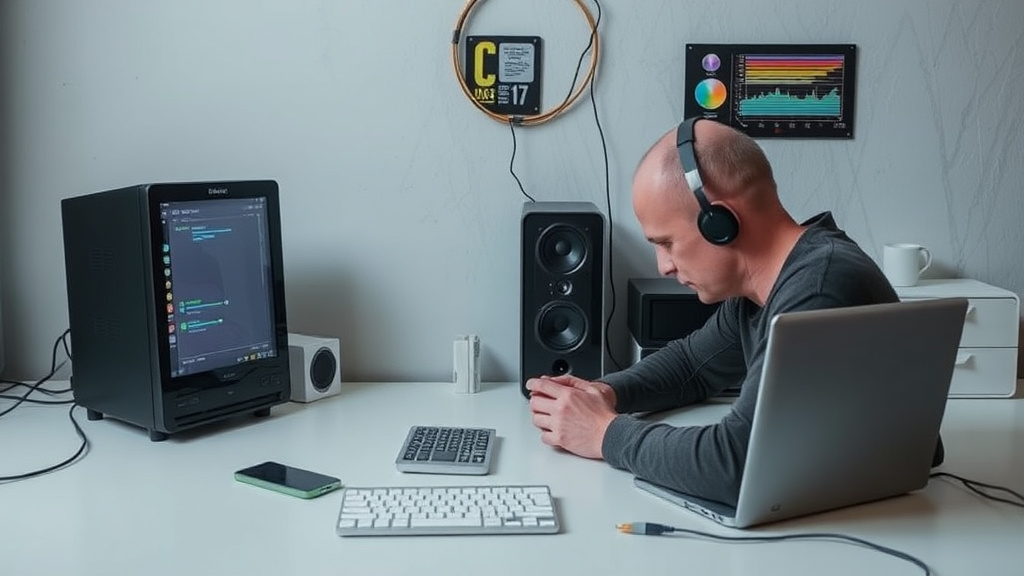
Consumer electronics troubleshooting when things go wrong can be daunting, but knowing the right steps can save you time and money. Whether it’s a smartphone, laptop, or smart home device, understanding how to diagnose and fix common problems is essential for any tech user.
Key takeaways
- Start with basic troubleshooting: power cycle, check connections, and update software.
- Diagnose issues by isolating one variable at a time to find the root cause.
- Use manufacturer resources and community forums to guide deeper troubleshooting.
- Knowing when to escalate to professional repair versus DIY fixes is crucial.
- Keep your devices backed up and settings documented to simplify recovery.
The Importance of a Systematic Approach
When a piece of consumer electronics stops working as expected, many of us instinctively panic or make random fixes hoping something works. I’ve found that the quickest path to resolution is a systematic approach. This means ruling out the simplest causes first before diving into complex or technical fixes.
For example, if your laptop won’t turn on, start by confirming if it’s receiving power. Is the power adapter plugged in and functional? Does plugging it into another outlet help? Once power is confirmed, check if the battery is seated properly or try removing it if possible. Only after these basics are verified do you move to more advanced steps like resetting BIOS or testing RAM modules.
This stepwise troubleshooting saves time and prevents accidental damage that can occur from unnecessary disassembly or software resets.
Common Consumer Electronics Problems and How to Troubleshoot Them
Let’s break down some frequent issues across popular device categories and how I test and resolve them.
Smartphones: Crashing Apps and Connectivity Problems
Apps freezing or crashing often stem from outdated software or insufficient memory. The first step I take is to close background apps and restart the phone, which clears temporary glitches. Next, I check for OS updates and install the latest patches, as manufacturers continually fix bugs in updates.
If Wi-Fi or cellular connections drop intermittently, I disable and re-enable airplane mode to reset radios. Resetting network settings or forgetting and reconnecting to Wi-Fi can clear corrupted caches. If issues persist, I test with a different SIM card or Wi-Fi network to isolate whether the device or network is at fault.
Laptops: Slow Performance and Startup Failures
Slow laptops can result from overloaded startup programs or malware. I use built-in task managers to disable unnecessary startup applications and recommend running malware scans with trusted antivirus software.
When your laptop won’t boot, I advise a two-pronged approach: first, check if there are error messages or beep codes during POST (Power-On Self-Test). These give hardware clues. Next, boot into safe mode — if possible — to uninstall recent updates or drivers that might have caused issues.
If your system won’t boot at all, I test peripherals and RAM sticks individually, as faulty memory modules are common causes of startup failures.
Smart Home Devices: Unresponsive or Offline Gadgets
Smart speakers, thermostats, and cameras often lose connection to the network or become unresponsive due to Wi-Fi dropouts or internal software errors. Power cycling the device and router is my primary quick fix.
I then confirm the device firmware is updated and check the app’s permissions and settings. Re-flashing the device firmware or factory resetting should be the last resort after backing up settings, as this erases custom configurations.
TVs and Monitors: No Display or Flickering Screen
No picture or flickering often results from bad HDMI cables or incorrect input settings. Swapping cables and ports helps rule out physical faults. If the device displays a menu but no external input, adjust picture modes or try a hard reset.
For flickering, I look at refresh rates and source resolution compatibility. Updating the TV’s firmware, if possible, often resolves bugs related to image refresh control.
Essential Troubleshooting Tools and Resources
Having the right tools greatly improves troubleshooting effectiveness. Here’s what I keep handy:
- Multimeter: For checking power adapters, cables, and circuits.
- USB Boot Drives: Useful for loading diagnostic tools or recovery software on PCs.
- External Storage: For backups before any risky updates or resets.
- Manufacturer Manuals/Forums: Official guides and community input provide tested solutions.
- Diagnostic Software: Many brands release their own utilities for identifying hardware issues.
In my experience, documenting your troubleshooting steps on paper or digital notes prevents repeated actions and helps escalate issues clearly if you need professional repair.
When to DIY and When to Call in the Experts
Knowing your limits is as important as knowing how to troubleshoot. Opening devices or flashing firmware incorrectly can lead to permanent damage or void warranties.
I recommend DIY fixes for issues like cable replacements, simple resets, or software updates. More complex hardware problems like motherboard failures, battery replacements in sealed units, or liquid damage should go to professionals.
If your device is under warranty, contact the manufacturer before attempting any repairs that might void coverage.
Consumer Electronics Troubleshooting Checklist
| Problem Type | First Step | Next Step if Unresolved | When to Escalate |
|---|---|---|---|
| Device won’t power on | Check power source & cables | Remove battery, reset hardware | Suspected motherboard or power supply faults |
| Smartphone app crashes | Restart phone & update apps | Clear app cache or reinstall | Persistent crashes after updates |
| Laptop slow or crashes | Disable startup programs | Run malware scan, check disk health | Hardware upgrade or professional service |
| Wi-Fi device drops connection | Power cycle device & router | Reset network settings | Router replacement or device hardware fault |
| TV/Monitor no picture | Check cables & input selection | Try factory reset or update firmware | Repair technician for panel or board issues |
Related reading
- consumer electronics glossary — jargon explained plainly
- consumer electronics maintenance — make gear last longer
- consumer electronics warranties, returns, and buyer protection
- consumer electronics setup walkthrough step by step
- consumer electronics brands we recommend vs avoid
FAQ
What’s the first thing to try when my device suddenly stops working?
Start with a full power cycle: turn off the device, unplug it if possible, wait 30 seconds, then turn it back on. Check for obvious issues like loose cables or drained batteries next.
How do I know if my electronics need repair or replacement?
If troubleshooting steps like resets, software updates, and cable swaps don’t fix the issue, and the device is older or repeatedly fails, replacement might be more cost-effective. Consult repair pros if unsure.
Can software updates cause my device to malfunction?
Yes, sometimes updates introduce bugs. If problems start after an update, look for rollback options or wait for patches from the manufacturer.
How often should I back up my device data to avoid loss during troubleshooting?
Regular backups are essential — at least weekly for critical data or before any major software changes. Cloud backups add convenience but check for device-specific backup solutions too.
Are third-party repair parts safe to use?
They can be, but quality varies widely. I only recommend reputable suppliers for batteries, screens, or cables, and caution that DIY replacements may void warranties. When in doubt, seek manufacturer repairs.
Troubleshooting consumer electronics can seem complex but following a logical process and using the right tools goes a long way. In my years of testing and fixing devices, combining patience with systematic checks is the best way to get your electronics back to working order without unnecessary expense.